When people talk about SharePoint at scale, one statement comes up almost immediately:
“SharePoint lists can’t handle large volumes because of the 5,000 item limit.”
This statement is only partially true, and more importantly, it is often misunderstood.
In reality:
- SharePoint lists can store millions of items
- The 5,000 threshold is not a storage cap
- Most issues come from how solutions are designed, especially when combined with Power Platform
This blog breaks down:
- What the 5,000 threshold really means
- Where SharePoint performs well
- Where it struggles
- How to design it for high-volume scenarios
- How Power Apps and Power Automate influence the design
What This Post Will Help You Understand
If you’ve worked with SharePoint at scale, you’ve likely faced questions like:
- Why does the 5,000 item threshold appear even when the list is indexed?
- Can SharePoint actually handle millions of records?
- Why do some queries fail while others work on the same list?
- How does Power Automate or Power Apps change the behavior?
- What design patterns allow SharePoint to scale safely?
This post answers these questions from an architectural perspective.
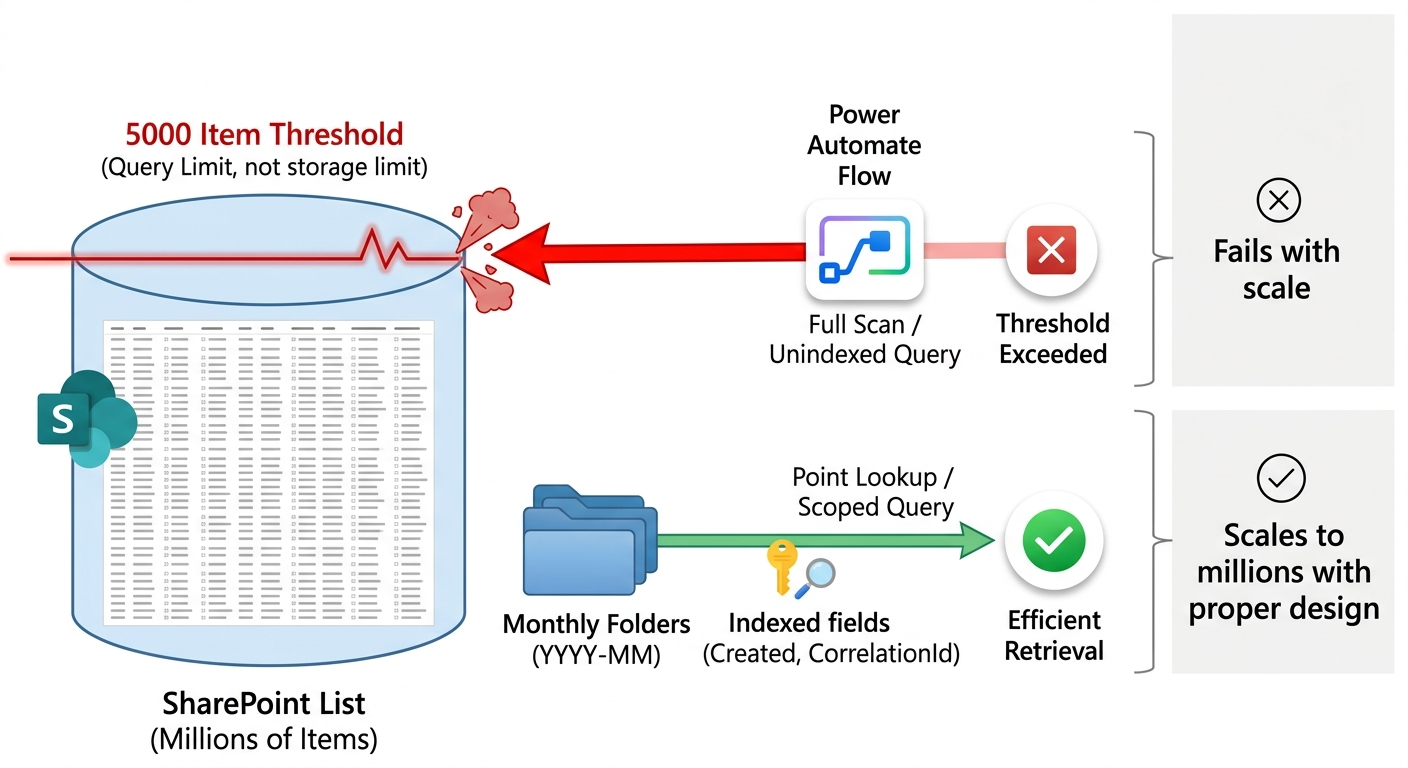
SharePoint is not limited by how much data it stores. It is limited by how data is retrieved.
Understanding the 5,000 Item Threshold
The 5,000 threshold is a list view constraint, not a storage limit.
It exists to protect the backend from:
- Expensive table scans
- Long running queries
- Resource contention across tenants
What it actually means
- SharePoint blocks queries that attempt to scan more than 5,000 items without proper indexing
- Lists themselves can scale to millions of records
The practical constraint is query execution and retrieval patterns, not raw storage volume.
Why Solutions Fail at Scale
Most large list issues come down to design decisions.
1. Treating SharePoint like a relational database
Running scans, aggregations, or report-style queries on lists quickly leads to performance issues.
2. Poor query design
- Filtering after retrieval
- Using non indexed columns
- Broad or unbounded queries
3. Ignoring access patterns
Designing for analytics instead of retrieval leads to instability as data grows.
The Power Platform Factor
When SharePoint is used with Power Platform, additional constraints appear.
1. Delegation challenges in Power Apps
- Not all queries are delegated
- Non delegable queries return partial datasets
- Apps can return incomplete result sets if delegation limits are not considered
Even if the data exists, the app may not retrieve all of it.
2. Query behavior in Power Automate
- The Get items action must use indexed filters
- Large datasets with weak filters lead to threshold errors
- Pagination helps, but does not fix poor query design
The connector simplifies usage but abstracts execution behavior.
3. Fixed connector model
- Create item requires a fixed list reference
- Dynamic list selection is not supported natively
- Advanced routing requires HTTP-based patterns
This limits traditional partitioning approaches.
Designing SharePoint for High-Volume Scenarios
Scaling SharePoint requires designing around retrieval patterns.
1. Use indexed columns strategically
Indexes are essential for scale.
Best practices:
- Index frequently queried fields
- Always filter using indexed columns
- Combine filters to reduce data early
Keep in mind that indexes improve filtering performance but do not make non-delegable client-side operations scalable.
Example
Instead of:
Status = ‘Failed’
Use:
Created ge ‘2026-06-01T00:00:00Z’ and Status eq ‘Failed’
Best case:
CorrelationId eq ‘abc-123’
Reduce the dataset as early as possible.
2. Design for point lookups, not scans
SharePoint performs best when:
- Queries target a specific item or small subset
- Exact match filters are used
- Full dataset scans are avoided
Think in terms of retrieval, not exploration.
3. Separate operational and analytical workloads
This is a critical architectural decision.
Use SharePoint for:
- Transactional data
- Operational logs
- Lookup-based workloads
Avoid using it for:
- Reporting and analytics
- Aggregations across datasets
- Long-term trend analysis
SharePoint is optimized for retrieval, not analytics.
4. Folder-based partitioning
Partitioning helps control scale, but creating multiple lists conflicts with Power Automate’s fixed connector model.
A practical approach is to use folders inside a single list.
The write pattern
In the Create item action:
- Use the Folder Path field
- Provide values such as:
Logs/2026-06
If the target folder exists, SharePoint can write directly into it through the Folder Path field.
Depending on connector behavior and configuration, folder creation may require a separate provisioning step or automation pattern.
The read pattern
When retrieving data:
- Use Get items
- Set Limit Entries to Folder
This helps narrow query scope to a specific folder boundary and can reduce the number of items evaluated, improving the likelihood of remaining within threshold constraints.
Important:
- Individual folders should ideally contain fewer than 5,000 items
- Or queries within the folder must rely strictly on indexed columns
Why this works
Explicitly targeting a folder reduces the logical scope of the query.
When combined with:
- Indexed filters
- Point lookup patterns
It provides a practical and scalable approach for operational workloads.
5. Manage concurrency and write patterns
At scale, write behavior becomes important.
Risks:
- API throttling
- Concurrent writes
- Burst traffic patterns
Mitigation:
- Use asynchronous designs where appropriate
- Avoid large write bursts
- Distribute workload when possible
Poor write patterns can create instability even with good read design.
6. Use retention and archival strategies
Even though SharePoint can hold large volumes, active datasets should be controlled.
Recommended approach:
- Keep recent data in active scope
- Archive older records periodically
- Move historical data to archive-oriented platforms such as:
- Azure Storage
- Dataverse
- Analytical stores
- Reporting platforms
This keeps performance stable over time.
Where SharePoint Works Well
SharePoint performs well when:
- Queries are indexed and selective
- Access patterns are predictable
- Retrieval is bounded
- Workloads are operational
Under these conditions, SharePoint can support very large datasets reliably.
Where SharePoint Breaks Down
SharePoint struggles when:
- Queries require scanning large datasets
- Workloads involve aggregation
- Concurrency is very high
- Reporting is done directly on lists
- Delegation limits are ignored
A Practical Architecture Lens
Instead of asking:
“Can SharePoint handle millions of records?”
Ask:
“Are my access patterns aligned with how SharePoint retrieves data?”
That is the more important question.
Final Thoughts
The 5,000 threshold is often treated as a hard barrier.
It is not.
It is a design constraint that encourages better architectural decisions.
SharePoint scalability is determined less by raw volume and more by:
- Access patterns
- Query design
- Workload characteristics
When designed correctly, it can scale further than most expect.
When designed poorly, it will fail much earlier than anticipated.
Found this helpful? I’d appreciate it if you could share this with your team!
Let’s Connect
How is your organization handling the shift to Managed Environments in 2026? I would love to hear your thoughts in the Power Platform Community or on LinkedIn.

Sunil Kumar Pashikanti
Principal Software Architect & Microsoft Community Super User. With 18+ years in the Microsoft ecosystem, I specialize in bridging the gap between enterprise business needs and advanced technical execution across Power Platform and Azure.