Architectural Integrity: Solving the ‘Field1’ Schema Issue
As a Solutions Architect, one of the most common pieces of technical debt I encounter in the Power Platform ecosystem is a poorly defined SharePoint schema.
When developers use the modern “New > List > From Excel” wizard, they often unknowingly compromise the long-term maintainability of their solution. The result? Internal column names like field_1, field_2, and field_3.
The Problem: The “Field1” Technical Debt
The modern SharePoint import wizard prioritizes speed and “safety” over schema integrity. To prevent list creation failures caused by invalid characters or duplicate headers, the engine automatically generates generic internal identifiers.
Why this matters:
- Power Automate Complexity: In the dynamic content picker, you lose the ability to easily identify fields.
- REST API & OData Hurdles: Writing filters like
$filter=field_17 eq 'Active'is prone to error compared to$filter=ProjectStatus eq 'Active'. - Documentation Overhead: You are forced to maintain a mapping document just to understand your own data structure.
This is a widely recognized issue in the community, documented across various forums:
- Microsoft Q&A: SharePoint imported Excel file has incorrect internal names
- Microsoft Tech Community: SharePoint Column Name Issue
The Solution: The “Architect’s Export” Method
To maintain a 1:1 mapping between your Excel headers and SharePoint internal names, we must bypass the modern web wizard and leverage the Legacy Excel Desktop Export engine.
Under the Hood: Why Desktop Export Wins
The secret to this fix lies in the APIs powering the connection:
- The Modern Wizard: Uses the latest Microsoft Graph and SharePoint REST APIs. These are designed to be “fail-safe,” often abstracting the underlying schema to ensure the data lands successfully, even if it means using generic names.
- The Legacy Export: Utilizes the classic SharePoint Lists Web Service (SOAP) via
Lists.asmx. This service was built to trust the client application’s explicit data definition. When Excel sends the command, it maps your headers directly to theStaticNameandInternalNameattributes in SharePoint.
The “Icon” Tell: Modern vs. Legacy Architecture
A fascinating visual side-effect of using the Desktop Export method is the icon assigned to the list in Site Contents.
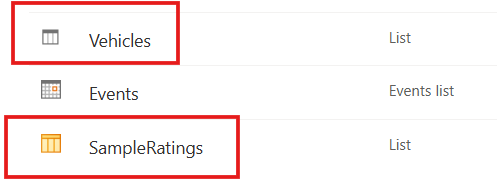
Figure 1: Visual distinction in Site Contents between Modern (Vehicles) and Legacy (SampleRatings) provisioning.
- Modern List Icon: A simple, flat list graphic (e.g., your “Vehicles” list).
- Legacy Export Icon: A multi-colored grid icon that mirrors the Excel logo (e.g., your “SampleRatings” list).
Architectural Significance: The icon isn’t just cosmetic; it is a metadata flag. The modern icon represents a list provisioned via Microsoft Graph (Type 100). The grid icon indicates provisioning via the SOAP Lists Service. While the user interface for adding and editing items remains modern, the underlying container preserves the schema naming integrity we defined in our Excel “Data Contract.”
| Feature | Modern Wizard | Legacy Desktop Export |
|---|---|---|
| Internal Naming | Auto-generated (field_1) | User-defined (Headers) |
| Icon Style | Modern List Icon | Classic Grid Icon |
| API Backend | Microsoft Graph / REST | SOAP (Lists.asmx) |
| Data Integrity | High (handles messy data) | Professional (handles schema) |
Implementation Strategy
1. Preparing the Data Contract
Before exporting, follow the “No-Space Rule” for internal names.
- Avoid:
Project Start Date(CreatesProject_x0020_Start_x0020_Date) - Recommended:
ProjectStartDate(Creates a clean, readable internal name)
Architect’s Tip: You can always change the Display Name back to “Project Start Date” after the list is created. The internal name will remain clean.
2. Executing the Export
- Open your file in Excel Desktop.
- Format your data as a Table (
Ctrl + T). - Navigate to Table Design > External Table Data > Export > Export Table to SharePoint List.
3. Verification of Schema
Inspect your List Settings. The URL in the browser should now end with Field=ProjectStartDate instead of a generic ID.
Technical Trade-offs: Ribbon Integration
An observant architect will notice that lists created via the Desktop Export method may lack the “Forms” or “Power Apps” shortcuts in the top ribbon.
Is functionality lost? Absolutely not. This is purely a UI manifestation of how the list is provisioned. While the shortcut button is absent, the list remains fully compatible with:
- Power Apps: Connect via the Power Apps Studio “Add Data” connector.
- Power Automate: All standard SharePoint triggers function normally.
- Modern UI: The list still utilizes the modern “New/Edit” experience and JSON formatting.
In enterprise architecture, we prioritize Data Schema Integrity over Ribbon Shortcuts. You can’t fix a broken internal name easily, but you can always connect a Power App manually.
Detailed Step-by-Step Guide
For a granular walkthrough with screenshots and common troubleshooting tips (including handling MFA prompts during the export), check out my companion post on Blogger:
👉 How to: Clean SharePoint Imports via Excel Desktop
Handling Large Datasets (Lakhs of Records)
When migrating hundreds of thousands of records, the schema is only the first step. To maintain performance:
- Indexing: Immediately index your most-queried columns.
- Batching: The SOAP-based Desktop Export handles large-volume batching natively, making it more resilient than browser-based Grid View pasting.
- Threshold Awareness: Be mindful of the 5,000-item view threshold for daily operations.
Architectural Comparison: Modern vs. Legacy Import
When choosing a migration path, it is essential to weigh the immediate UI experience against long-term maintainability.
| Feature | Modern “From Excel” Wizard | Legacy Desktop Export |
|---|---|---|
| Internal Naming | Auto-generated (field_1) | User-defined (Excel Headers) |
| UI Presentation | Modern List Icon | Classic Grid Icon |
| API Backend | Microsoft Graph / REST | SOAP (Lists.asmx) |
| Ribbon Shortcuts | Power Apps/Automate buttons present | May require manual navigation |
| Scalability | Good for small/medium sets | Resilient for “Lakhs” of records |
| Schema Integrity | Low (Technical Debt) | High (Production Ready) |
A Note on Ribbon Shortcuts & Integration
You may notice the “Power Apps” or “Forms” menu is missing from the top ribbon in the legacy-provisioned list. As an architect, it is important to understand that this is purely a UI manifestation. The list remains 100% compatible with the Power Platform. You simply connect to the list from within Power Apps Studio or Power Automate rather than using the ribbon shortcut. We trade a single button click for a clean, professional data contract.
Conclusion
A professional solution starts with a professional data contract. By using the Desktop Export method, you ensure your Power Platform solutions are easier to build, document, and maintain.
Are you dealing with generic field names in your current environment? Let’s discuss the best refactoring strategies in the comments.
Found this helpful? I’d appreciate it if you could share this with your team or mark this as a helpful resource in the Power Platform community!
Let’s Connect
How is your organization handling the shift to Managed Environments in 2026? I would love to hear your thoughts in the Power Platform Community or on LinkedIn.

Sunil Kumar Pashikanti
Principal Software Architect & Microsoft Community Super User. With 18+ years in the Microsoft ecosystem, I specialize in bridging the gap between enterprise business needs and advanced technical execution across Power Platform and Azure.